
How to restore old photos for free with Gemini
Repair and color a family photo with Google's free AI, one step at a time. No editing skills needed.
Free · About 5 minutes · Last checked September 29, 2026
Rather have it done for you? We restore them from $1.00 a photo
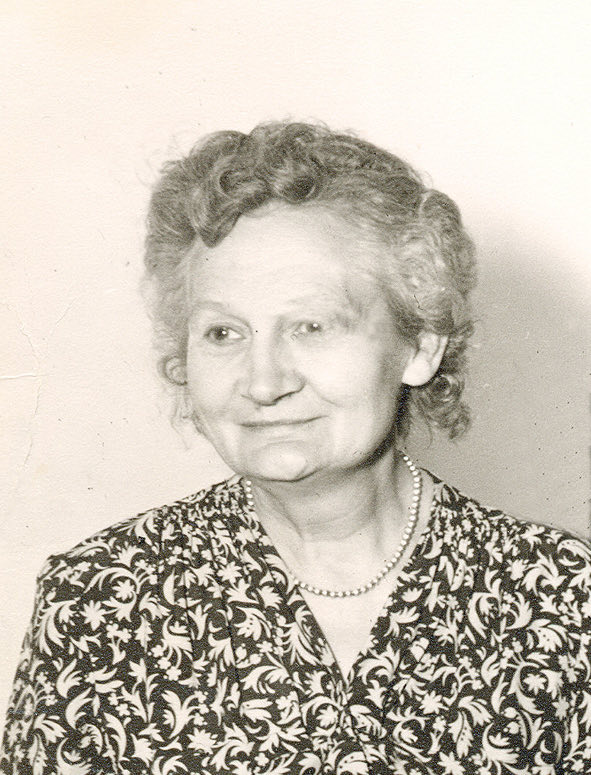

Restored with Gemini using the prompt in step 3.
Video walkthrough
Prefer reading? Every step is written out below.
A note on privacy
When you upload a photo to the free Gemini app, Google may use it to improve its AI. Trained reviewers may also read some chats. Google asks you not to share anything you'd want kept private. You can turn off Keep Activity first, though Google still keeps chats for 72 hours.
Turn off Keep Activity (opens in a new tab)Google's Gemini privacy hub (opens in a new tab)
Prefer more privacy? Our restoration service sends photos to AI providers under business terms that don't use them for training. We delete them 30 days after your order. How our service works
What you need
- A Google account. Gmail works, and it's free.
- A clear copy of your photo. A photo taken with your phone is fine. How to take a good one
- About five minutes.
The 6 steps
Step 1: Open Gemini and sign in
Go to gemini.google.com in your web browser. If you see a Sign in button in the top-right corner, click it and use your Google account. It's the same login you use for Gmail or YouTube. No account yet? Click Create account. It's free.
Open gemini.google.com (opens in a new tab)Step 2: Choose Create image
Click the + in the chat box, then choose Create image. The chat box changes to say Describe your image. That's how you know Gemini will send back a picture, not a description.
Step 3: Paste the prompt
Copy the prompt below and paste it into the chat box. It asks Gemini to crop and straighten your photo, repair the damage, and add natural color.
Restoration prompt
Restore this old family photograph. Crop to the picture itself. Remove everything around it: white or decorative borders, mount cards, photo corners, album pages, tape, and anything else in the shot such as a table, fingers, or glare. If the photo sits at an angle, straighten it first. Don't cut into the picture. Keep the same people, faces, expressions, clothing, objects, and background. Do not add or remove anything. Remove scratches, dust, stains, creases, tears, and glare. Reduce grain without erasing fine detail. Improve sharpness only where the photo clearly supports it. Keep faces natural, with no plastic skin or over-sharpened edges. Leave distant or blurry details soft. For black-and-white or sepia photos, add natural, muted colors that fit the era. For color photos, keep the original colors and remove any faded or yellow cast. Return only the restored photo.
Step 4: Add your photo
Click the + again and choose Upload files. The first time, Gemini may show a notice. Click Agree to continue, then pick your photo. Add one photo at a time.
Step 5: Send it
Leave the model on Flash, then click the send arrow. Restoring your photo takes about 30 seconds to a minute.
Step 6: Save your restored photo
Under the restored photo, click the download icon. It's the down arrow, second from the left. It's yours to print, frame, or share.
If the result isn't right
The face doesn't look like them
This usually means the copy of the photo is small or blurry, or part of the face is covered. Make a sharper copy, then run the prompt again in a new chat. How to make a sharper copy
The colors look too bright or fake
Add this to the end of the prompt: Keep the colors soft and true to the era. Or ask Gemini for a black-and-white version instead.
Part of the photo is cut off
Gemini sometimes trims too much when it crops. Crop the photo yourself before you upload it, then try again in a new chat.
Gemini describes the photo instead of fixing it
Check that the chat box says Describe your image (step 2). If it doesn't, Gemini answers in words instead of sending a picture.
What Gemini can't fix
Gemini fills in missing detail with its best guess. That works well for scratches, dust, and faded color. It works less well when the original detail is gone for good.
- Missing faces. If half a face is torn away, Gemini fills it in with a guess. It will look like a real person, but not always the right one.
- Small printed text. Newspaper clippings and documents with tiny type often come back with made-up words.
- Very small or blurry copies. If the photo you upload is tiny or pixelated, there's no real detail left to recover.
- Deliberate styles. Sepia and hand-tinted photos get recolored like any other. To keep the style, say so in the prompt.
Common questions
Is it really free?
Yes. You only need a free Google account. Free accounts have usage limits that Google changes from time to time. If Gemini says you've reached your limit, try again later.
Can I restore more than one photo?
Yes. Start a new chat for each photo and repeat steps 2 to 6, so an earlier photo doesn't affect the next result.
What happens to the photos I upload?
Google saves them in your Gemini activity. It may use them to improve its AI, and trained reviewers may read some chats. You can turn off Keep Activity or delete your activity at any time. Open your Gemini activity (opens in a new tab)
Have a whole box of photos? Doing them one at a time adds up. If you'd rather hand them off, we restore whole collections for you. See how it works